
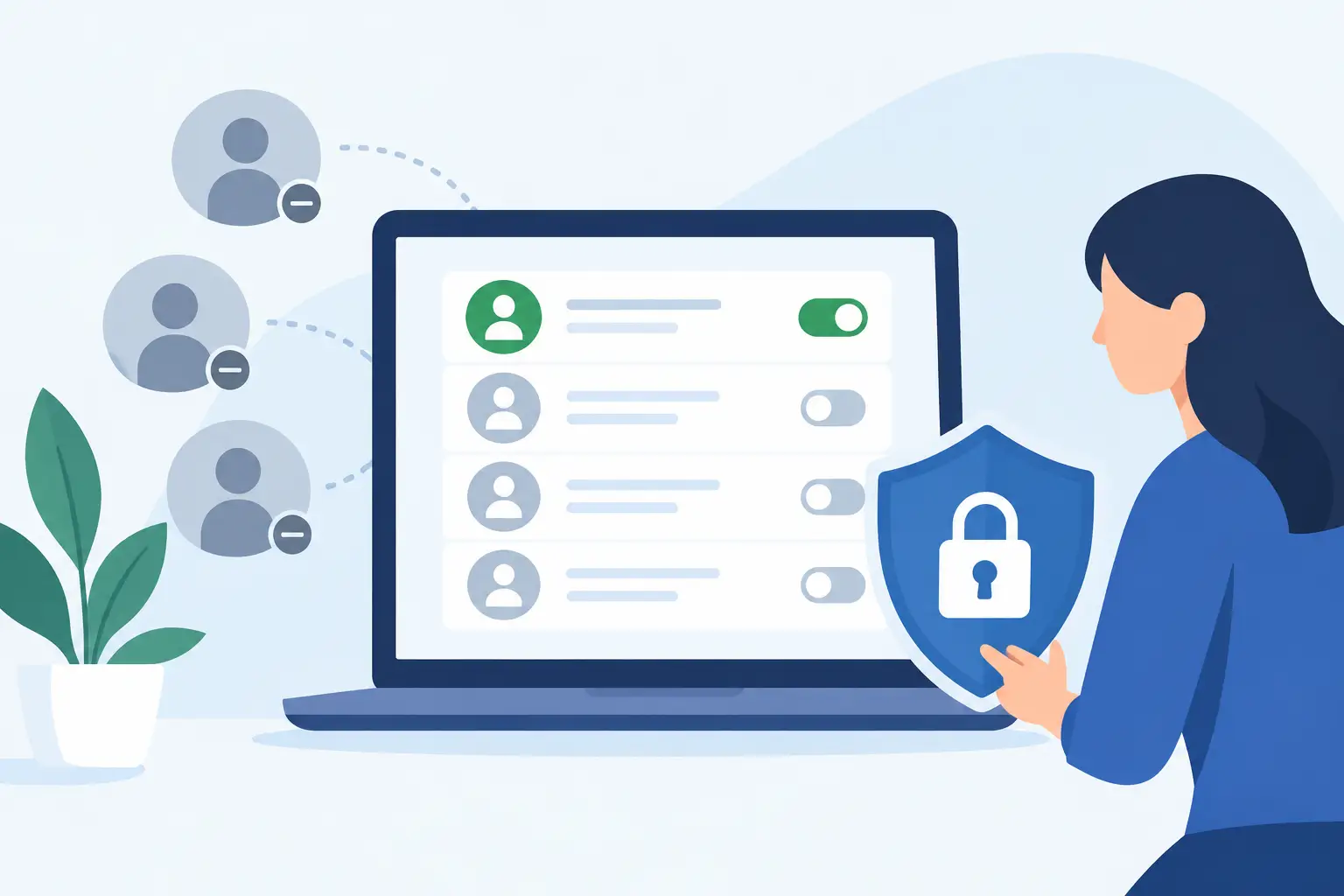
A former employee’s Microsoft 365 account can remain quiet for months without causing a visible problem. Then a stolen password, an overlooked forwarding rule, or a phishing email turns that unused account into a direct path to company data. Knowing how to manage inactive accounts is not an administrative cleanup task. It is a core access-control practice that protects operations, compliance posture, and business continuity.
Inactive accounts are common in every organization. They may belong to former employees, temporary workers, vendors, shared mailboxes, old application administrators, or users who have changed roles. The risk is not simply that these accounts exist. The risk is that no one can clearly explain why they still have access, what they can reach, or who is responsible for reviewing them.
Why inactive accounts create business risk
An account does not need to be actively used to be dangerous. If it still has a valid password, a mailbox, remote access, or elevated permissions, it remains a potential entry point. Attackers often target dormant accounts because they are less likely to be monitored by the user or noticed during day-to-day support activity.
For businesses that rely on Microsoft 365, cloud applications, line-of-business systems, and remote endpoints, inactive accounts can create several operational problems. They can retain access to sensitive files and email, continue to consume licenses, receive business communications, or preserve administrative privileges that are no longer appropriate. In regulated environments, unmanaged accounts can also complicate audits and make it difficult to demonstrate that access is reviewed and removed consistently.
The impact can extend beyond cybersecurity. An unattended shared mailbox may cause customer requests to go unanswered. A former employee’s account may still be assigned as the owner of a workflow, application, or backup process. If that account is disabled without reviewing dependencies, a necessary business process can fail.
That is why account management requires discipline. The goal is not to delete every account that has been inactive for a set number of days. The goal is to confirm ownership, remove unnecessary access, preserve required business records, and maintain a clear trail of what was changed and why.
How to manage inactive accounts with a defined lifecycle
The most reliable approach is to manage accounts through a documented lifecycle: identify, review, secure, retain or remove, and monitor. This creates a repeatable process instead of relying on an occasional manual cleanup.
Identify accounts that need review
Start with a complete inventory. Review user accounts in Microsoft 365, active directory or cloud identity systems, remote access platforms, business applications, VPN tools, endpoint management consoles, and privileged administrator portals. Do not limit the review to standard employee accounts. Service accounts, shared accounts, contractor identities, and application accounts often carry significant access and are frequently overlooked.
Define what “inactive” means for each account type. For a standard employee account, it may mean no sign-in activity for 30, 60, or 90 days. For a service account, a lack of interactive sign-in does not necessarily indicate inactivity because it may support an automated process. A shared mailbox may have no direct login activity but still receive important customer communications.
Activity data provides a starting point, not a final decision. Review last sign-in dates, email activity, assigned licenses, group memberships, administrative roles, device associations, forwarding rules, and recent file access. An account with no login history but global administrator privileges should be treated as a high-priority security issue, even if it appears unused.
Confirm ownership before taking action
Every account should have an identified business owner. If an account has no owner, that is a finding that needs resolution. The responsible manager, department leader, application owner, or IT administrator should be able to confirm whether the account remains necessary and what it supports.
This step prevents two common mistakes: leaving unneeded access in place because no one wants to make a decision, and disabling an account that still supports a business function. For example, a purchasing mailbox may be tied to vendor communications, while a former employee’s account may be required temporarily for legal hold or records retention.
Set a response deadline for managers. If an owner cannot validate the need for an account within the defined review period, the account should move toward suspension or removal based on your policy. Access should not remain active indefinitely because a decision was delayed.
Disable access before deleting data
For most former employees and unnecessary user accounts, the first action should be to block sign-in rather than immediately delete the account. Disabling access stops new logins while giving IT and business leaders time to preserve data, transfer ownership, and review dependencies.
At the same time, revoke active sessions and authentication tokens, reset credentials if needed, remove multifactor authentication methods, and terminate VPN or remote desktop access. If the account was privileged, remove administrative roles immediately and review audit logs for unusual activity before and after the separation date.
Email and file ownership require separate decisions. A manager may need temporary access to a departed employee’s mailbox, OneDrive files, or business contacts. Establish a defined retention period and document who can access those records. Avoid converting personal user accounts into shared team accounts without a reason and a clear owner. That practice makes accountability harder and can leave old permissions in place for years.
Remove permissions and connected access
Disabling an account is necessary, but it may not remove all risk. Review the systems connected to that identity. The account may have access through group memberships, application assignments, delegated mailboxes, shared drives, collaboration sites, password vaults, financial platforms, CRM tools, or cloud infrastructure consoles.
Pay particular attention to elevated access. Local administrator rights, Microsoft 365 administrative roles, firewall access, backup administration, and security platform permissions should be reviewed immediately when a user changes roles or leaves the organization. These permissions create a much larger exposure than standard email access.
The same principle applies to third-party vendors. Vendor accounts should be limited to the systems they need, protected with multifactor authentication, assigned an expiration date where possible, and reviewed when the contract or project ends. Shared vendor credentials should be avoided because they eliminate individual accountability.
Build a policy that supports operations
A workable inactive-account policy should define who initiates offboarding, who approves exceptions, how quickly access is disabled, which records must be retained, and when accounts are permanently deleted. It should also distinguish between employee accounts, contractors, shared mailboxes, service accounts, and privileged identities.
Human resources, department management, and IT each have a role. HR or management should provide prompt notice of employee departures and role changes. Department leaders should confirm business ownership and data retention needs. IT should disable access, remove permissions, preserve records according to policy, and document completion. When these responsibilities are unclear, accounts tend to remain active longer than intended.
Timing matters. For involuntary separations or suspected security incidents, access removal should occur at the time of termination or sooner when appropriate. For routine departures, IT should still have a defined completion window. Waiting until the end of the week or the next monthly review leaves an unnecessary gap.
There is no universal retention period. Your timeline should reflect legal requirements, customer contracts, insurance obligations, licensing costs, and business needs. What matters is that the policy is documented, applied consistently, and reviewed when technology or compliance requirements change.
Use monitoring and automation without losing oversight
Automation can improve consistency, especially for organizations with multiple locations or frequent staffing changes. Identity platforms can flag accounts with no recent sign-in activity, trigger approval workflows, remove licenses, revoke sessions, and notify responsible managers. Automated reports can also identify accounts that are disabled but still assigned expensive licenses or privileged roles.
However, automation should support judgment rather than replace it. Automatically deleting every inactive account after 90 days can disrupt services if the account is tied to an application, mailbox, workflow, or legal retention requirement. A safer model is to automate detection and initial suspension, then require review before permanent deletion.
Continuous monitoring is equally important. Review failed login attempts, sign-ins from unusual locations, changes to mailbox rules, new administrative role assignments, and access attempts on disabled accounts. These events may indicate that a credential was compromised before the account was fully secured.
Make inactive-account reviews part of routine IT operations
A quarterly access review is a practical baseline for many small and mid-sized businesses. Higher-risk environments, organizations with regulated data, or companies with frequent personnel changes may need monthly reviews. Privileged accounts should be reviewed more often because they can affect the entire environment.
The review should produce clear outcomes: accounts confirmed as active, accounts disabled pending review, accounts retained for a documented business reason, and accounts removed. Keep an audit record of approvals, actions taken, and exceptions. This gives leadership a clear view of access risk and provides evidence that controls are operating as intended.
Inactive accounts are a small detail with outsized consequences. A structured process gives your organization control over who can access systems, where critical data resides, and when access should end. One Source Datacom helps businesses put that process into day-to-day IT operations, so account security is managed before it becomes an incident.